
Google Ads Editor: fewer clicks when the campaign calendar gets busy
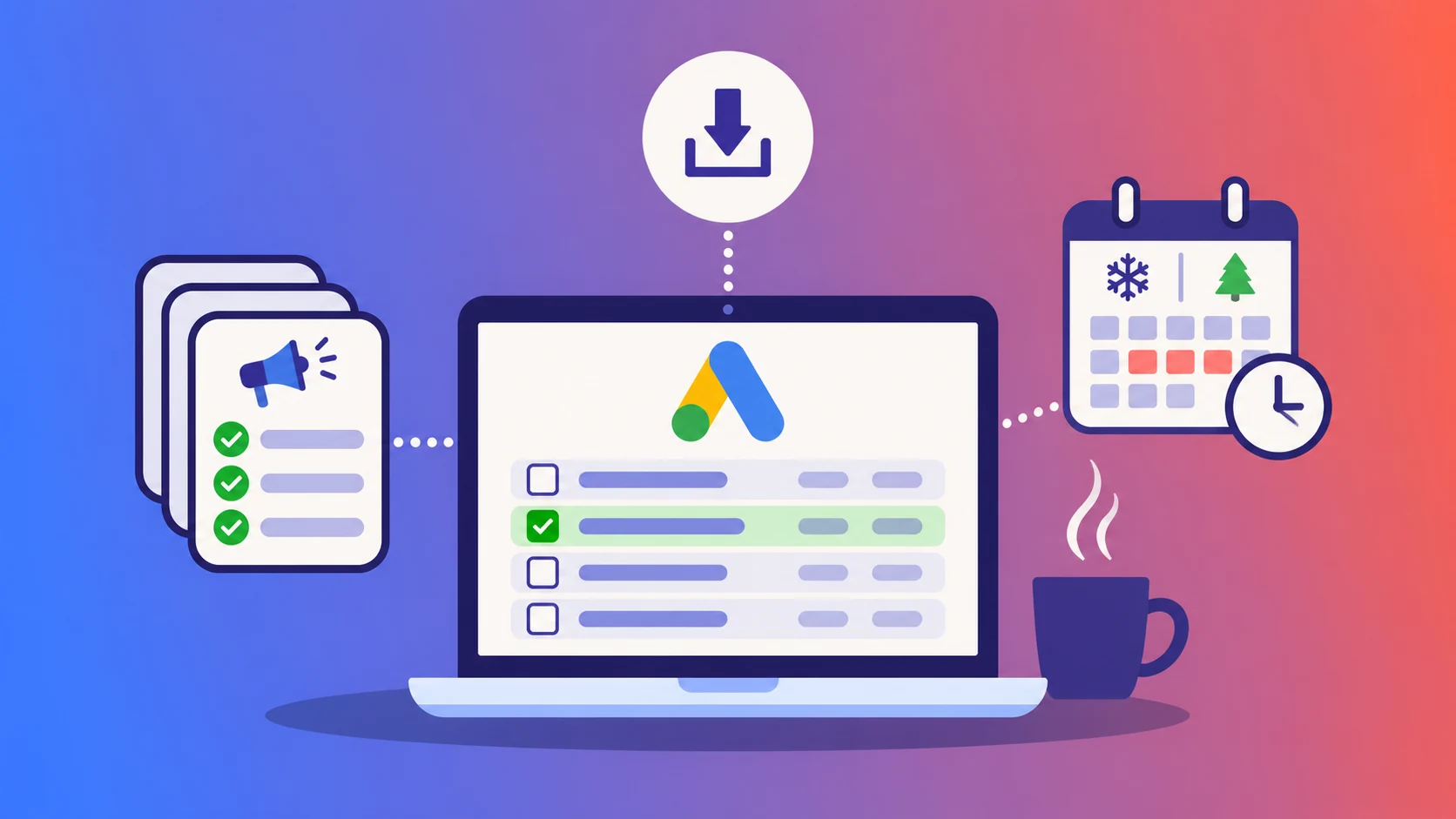
Black Friday has a way of turning “just a few campaign updates” into a spreadsheet, three deadlines and a discount that changed again while you were making coffee.
Christmas, a product launch or a summer sale can do much the same. When copy, URLs, budgets and campaign settings need changing across an account, the tool you use starts to matter.
I work with both Google Ads Editor and the Google Ads web interface, depending on the scope. Editor is particularly useful when there is a lot to prepare at once. The web interface remains essential for other parts of the job, including automation. Knowing where to switch saves more time than insisting on doing everything in one place.
Where Editor earns its place
Google Ads Editor is Google's free desktop application. Download your account, prepare changes locally, check them and post them back to Google Ads. Your offline edits do not change the live account until you upload them.
Its strength is repetitive work: copying campaign structures, replacing text across selected ads, updating URLs and importing batches from a spreadsheet or CSV. You can also share proposed changes for review before posting.
Imagine preparing a Christmas promotion across several product categories. The offer changes from 15% to 20%, the landing pages move, and the messaging needs a consistent delivery deadline. Editor lets you work through those changes as a controlled batch, instead of repeatedly opening individual items.
The browser has bulk editing tools too. Editor becomes especially useful when the job involves lots of related changes, reusable structures or preparation away from the live account. For one small correction, opening the browser may still be quicker.
Before the big edit: CSV exports and proper backups
A backup is not the glamorous part of a campaign launch. Neither is trying to remember what the budgets were before lunch.
Use a CSV for a readable snapshot, and an AEA archive for an Editor backup. They serve different purposes:
- CSV: under Account > Export, choose the whole account, selected campaigns or ad groups, or the current view. The current view is handy for a focused sheet of promotional ads or keywords. Downloaded statistics are included; a plain CSV does not package the image files. Google offers a CSV-with-images ZIP option for that.
- AEA: choose Account > Export > Whole account > AEA for an archive that also includes unposted changes, comments and draft campaigns. You can archive selected campaigns instead, but be clear about what your backup covers.
Before a large seasonal update, download recent changes, resolve conflicts and save a dated archive. Export the relevant CSV too, keep that original untouched, and edit a separate copy. A name such as christmas-search-before-2026-11-29.csv is more useful than final-final-really-final.csv. Keep a second snapshot after the approved changes are posted.
Importing an AEA archive restores the archived state inside Editor. It is not an instant undo button for the live account: any changes you intend to send back still need review and posting. Treat these as snapshots of the data held in Editor, not a complete backup of everything in Google Ads, including billing or all historical reporting.
A few small tricks that make big batches easier
- Let Editor provide your spreadsheet template. Export the relevant items first, then edit a copy. For a round trip, enable “Include original columns in CSV/ZIP exports” in export settings. Keep the
#Originalvalues intact and edit the corresponding working columns, following Google's CSV preparation guidance. This helps distinguish edits to existing items from new entries. - Check the import beyond the preview. Under Account > Import > From file, verify the column mapping and review the resulting changes before accepting them. Google's import preview shows only the first 100 rows; the rest still import. A tidy preview does not mean row 101 has behaved itself.
- Paste a batch without creating another file. Select the relevant item type and use Make multiple changes to paste spreadsheet rows. Include the campaign and ad group information where needed, and check the destination before applying the batch.
- Narrow the selection before replacing text. Filter to the event's campaigns, select the intended ads and use Replace text on the relevant fields. Changing “15%” to “20%” should update the Christmas offer, not every unrelated promotion in the account. Check character lengths and landing-page promises afterwards.
- Share a proposal before posting it. An AES file lets another Editor user import and review your proposed changes. For someone reviewing copy in a spreadsheet, a focused CSV may be simpler. Agree who will post the final batch so two people do not upload competing versions.
Preparing a launch and scheduling it are different jobs
Editor supports ad schedules and campaign start/end dates. You can bulk-edit ad schedules, for example to restrict campaigns to particular days and hours. That controls when ads may run; it does not schedule an arbitrary batch of copy changes to upload from your laptop at midnight.
For timed actions such as enabling promotional ads, pausing them afterwards or changing budgets, use the web interface's automated rules. Editor prepares the work; the rules handle supported actions in the online account once the relevant items have been posted.
There is a timing catch: Google says rules can execute within two hours after their conditions are triggered. A midnight rule is therefore not a promise of a midnight switch. Check the account time zone and avoid relying on a rule alone to remove an offer at an exact contractual deadline.
A practical workflow for a busy promotion
- Refresh, back up and define the batch. Download recent account changes, review any conflicts and agree who is editing which campaigns. Save your pre-edit archive and CSV, then list the offer, landing pages, dates and intended budget changes.
- Build and label. Prepare the promotional ads and assets in Editor. Give them a clear event label, and keep new promotional items paused until launch. Check copied settings rather than assuming last year's campaign is still the right template.
- Review before posting. Check prices, destinations, exclusions and the selected campaigns. Run Editor's Check changes, then inspect the posting results for errors. A large batch can contain a small mistake in a lot of places.
- Allow for approval. Post early and check policy status. Google recommends submitting several days ahead; paused ads are reviewed too. Most reviews finish within one business day, but some take longer. Local validation is not policy approval.
- Schedule the start and the finish. In the web interface, preview rules against the intended items and check their timing. Plan the return to evergreen ads and normal budgets as carefully as the launch, then monitor rule history, delivery and spend.
What still needs the web interface?
- Billing and account preferences. These are among the account-level changes Editor does not support.
- Automated rules and their run history. Set up and manage these online. Editor's local checks and custom validation rules are a different feature; they are not scheduled account actions.
- Unsupported ad fields. Feature coverage depends on the version and ad type. Google's posting documentation warns that editing an ad in Editor can strip text from fields it does not support. Use the web interface for those ads.
Some supposed limitations are outdated. Editor can display performance statistics, and Google's dedicated instructions cover creating and updating shared budgets. I would check the specific feature and installed version before deciding something is browser-only.
Use the tool that fits the work
For a substantial batch, Editor makes preparation and review easier to organise. For automation, account administration and checking what is happening online, the web interface has its place. Neither removes the need to check the offer, the destination or the result.
The useful outcome is fewer repetitive clicks and more attention left for the campaign itself. Ideally, with enough time to finish that coffee.
If you need help preparing campaigns for a busy period, take a look at my SEO, SEA and SEM consulting, or get in touch.
Feature references checked against Google's documentation in November 2026. Editor capabilities change between releases.